
From assigned tasks to manager-ready records
A connected workflow for tracking, visibility, and billing support
Start with the assigned task
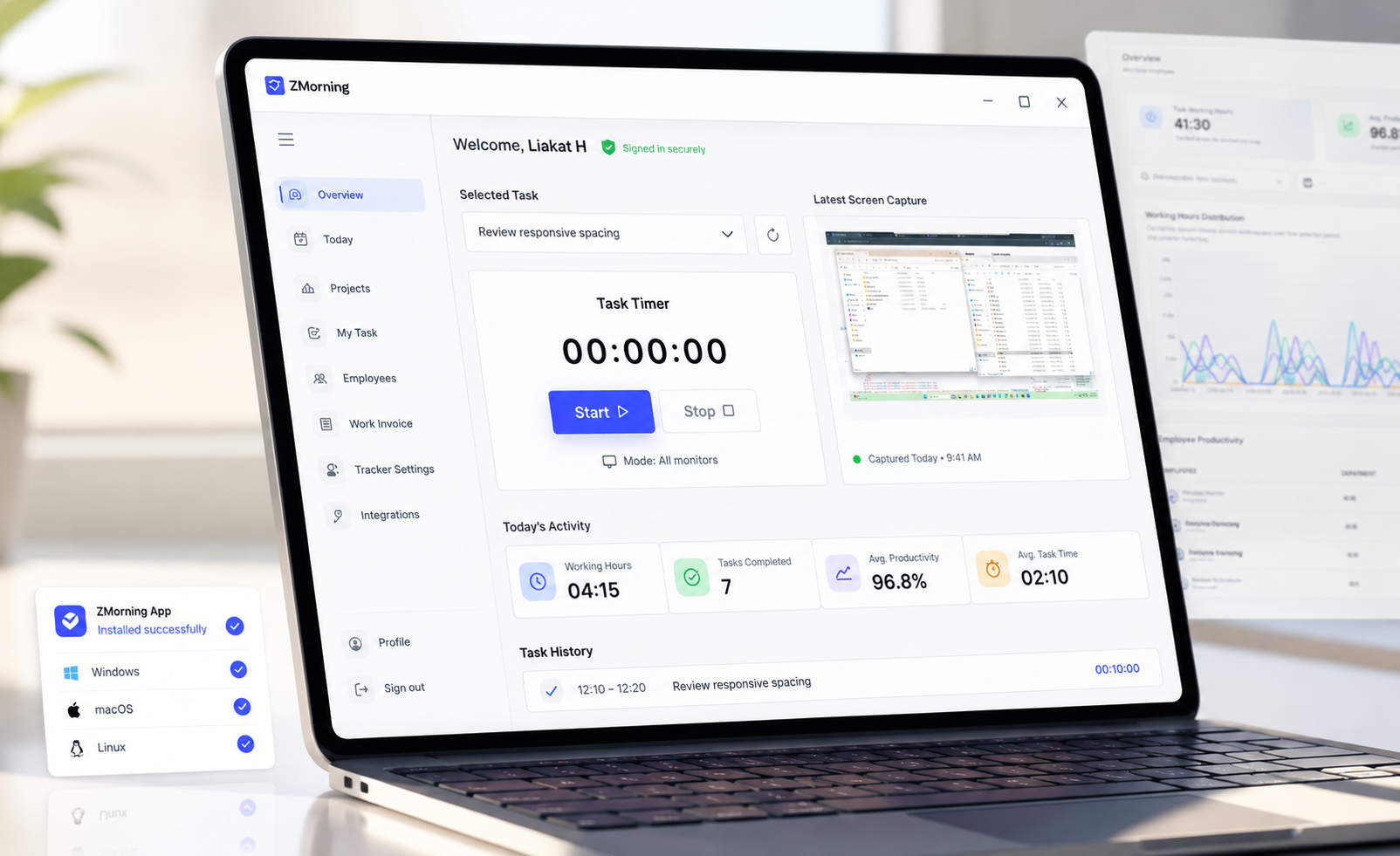
Employees open the desktop app, choose the task they are working on, and start the timer so tracked hours stay connected to real work.
Track work while it happens
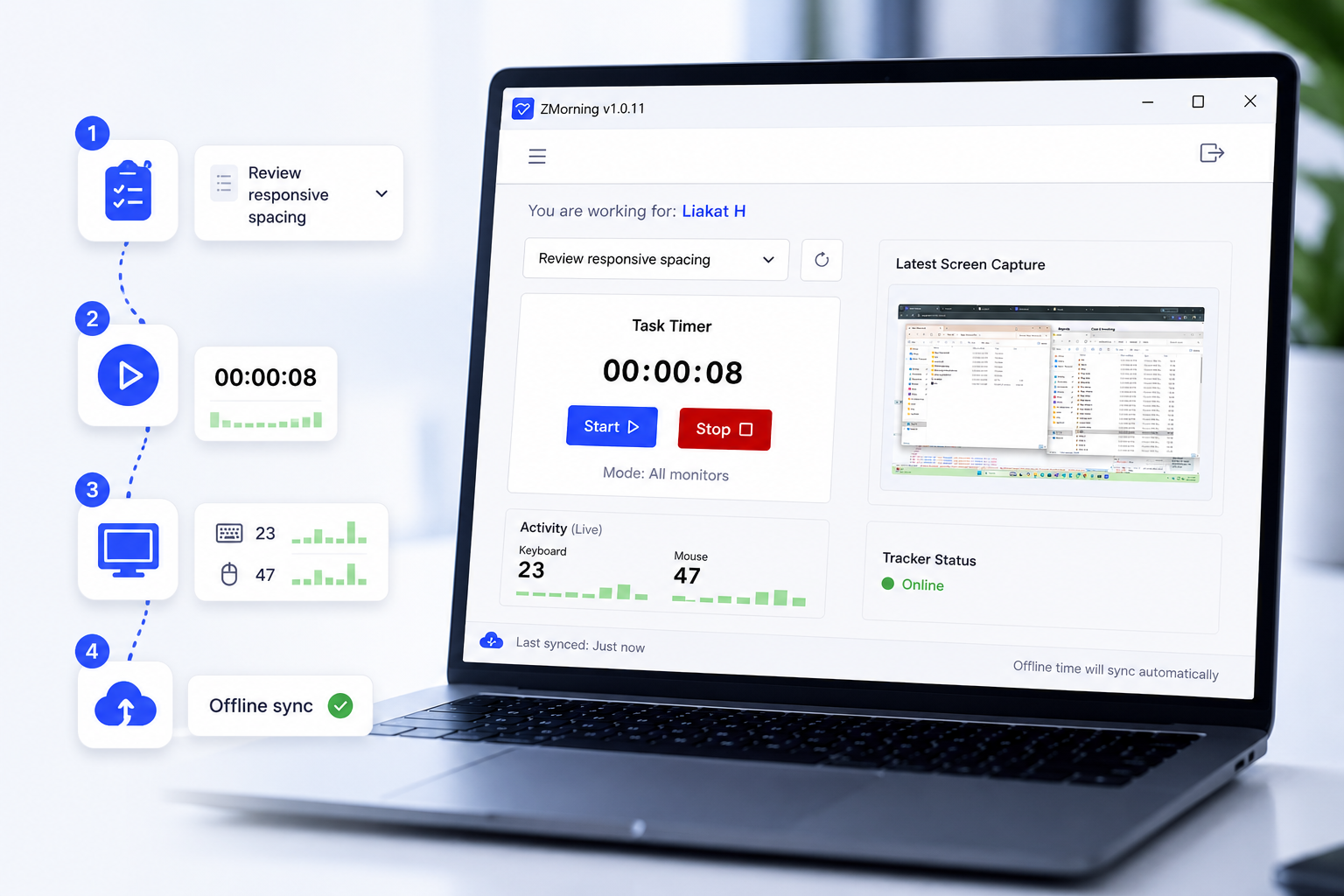
ZMorning records time, screenshots, and activity signals while work is in progress, with support for tray control, offline sync, and multi-monitor setups.
Review, report, and prepare billing
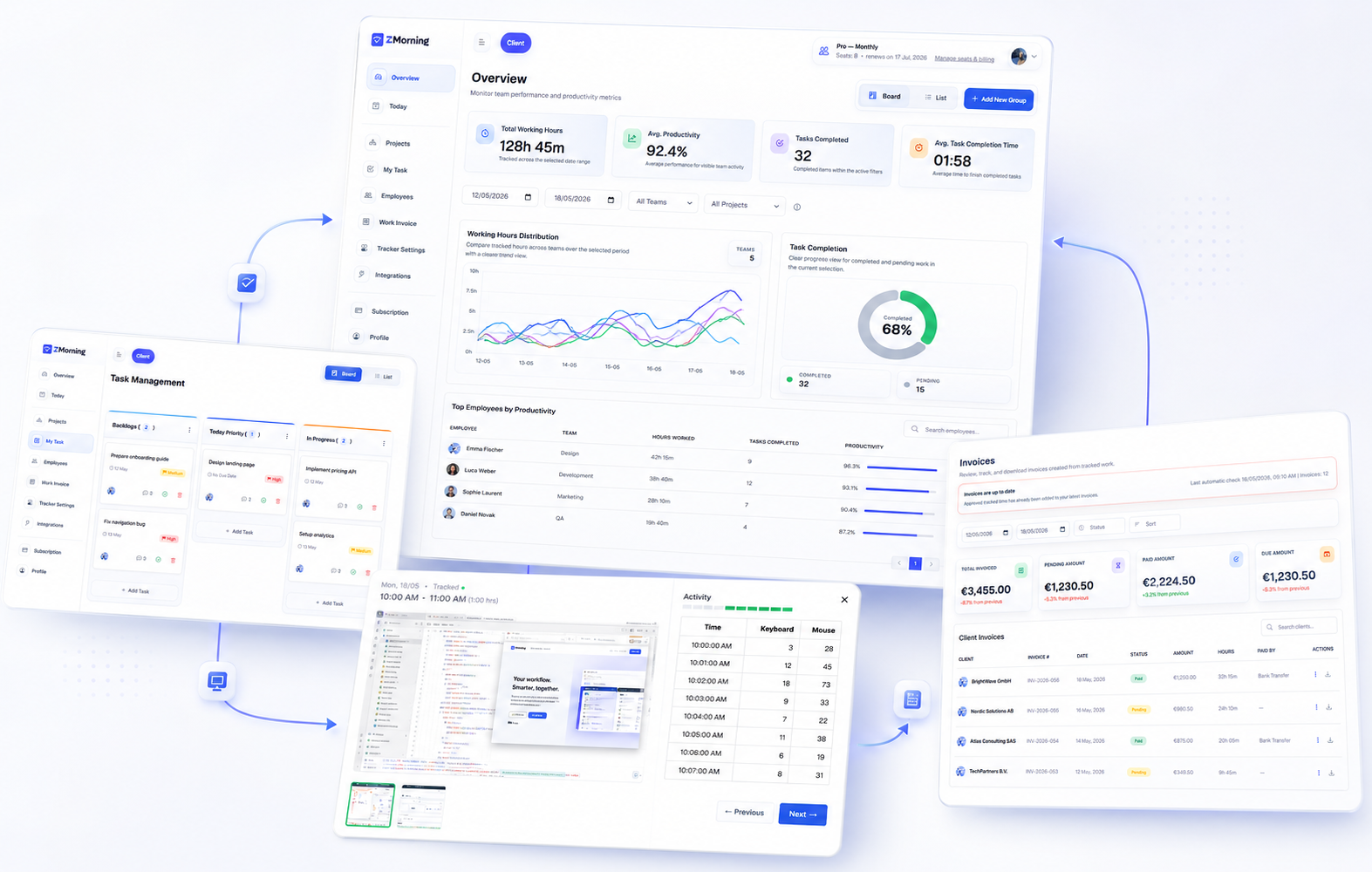
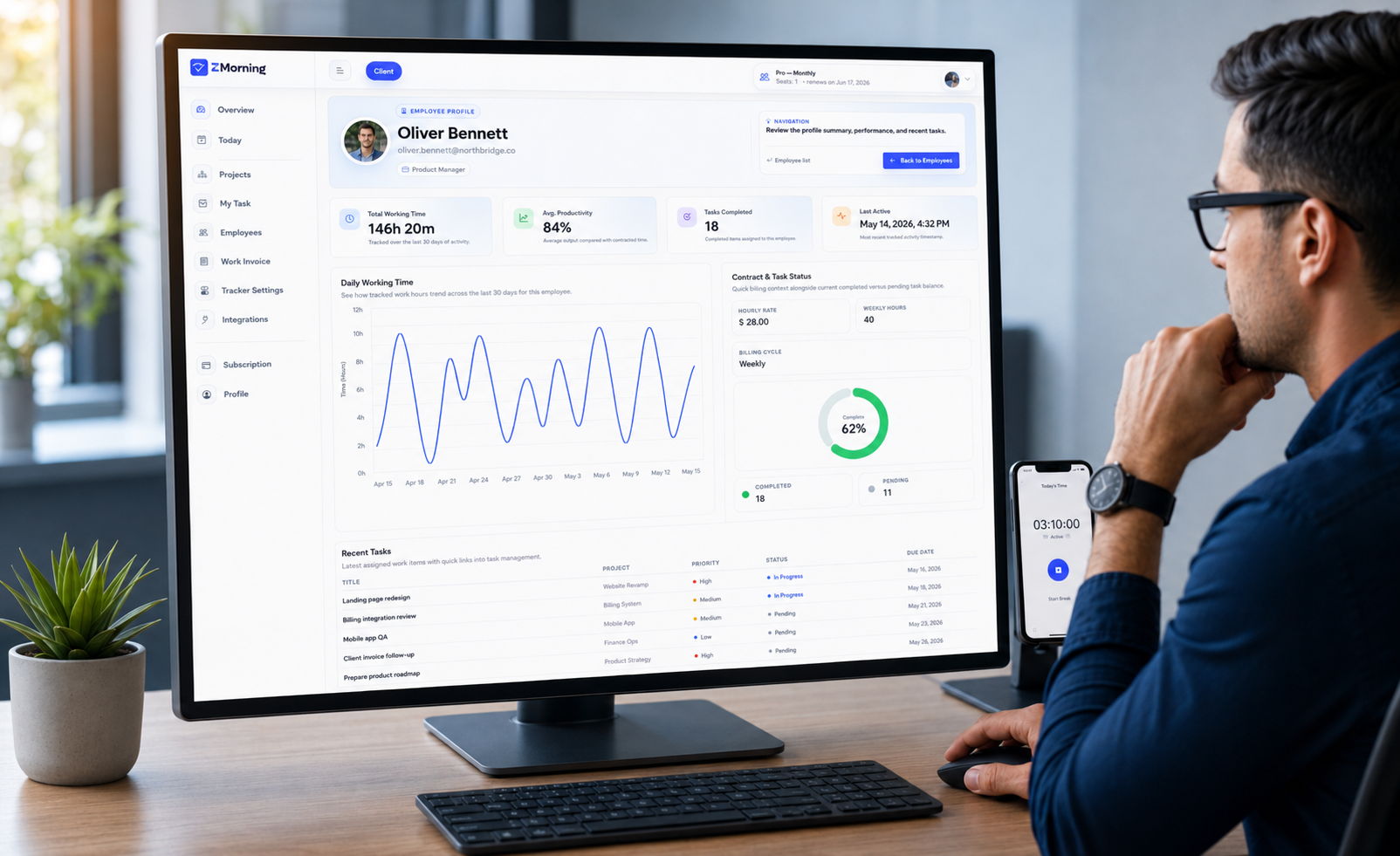
Managers use the dashboard to review hours, activity, task progress, reports, project cost, and invoice-ready records without relying on disconnected exports.
Where this workflow is most useful in real teams
ZMorning works best when teams need task-based tracking, visible proof of work, and cleaner reporting in one workflow.
Task-based employee tracking
Track hours against assigned work instead of vague timesheets
Keep task progress easier to review later
Screenshot-backed work review
Review captured work sessions with more confidence
Useful when proof of activity matters to managers or clients
Remote team supervision
See hours, screenshots, and activity context across remote workdays
Reduce the need for constant status chasing
Small team accountability
Keep daily work records organized without heavy process overhead
Useful when managers need cleaner visibility as teams grow
Cost-to-invoice workflow
Turn tracked hours into cost visibility and billing support
Reduce spreadsheet cleanup before invoice preparation
Agency and freelancer delivery
Support client-facing reporting and cleaner work logs
Useful when time, proof of work, and billing need to stay aligned
Workflow FAQ
-
How do employees begin tracking their work?
Employees log into the ZMorning desktop app, choose an assigned task, and start the timer. This keeps tracked hours connected to real work from the beginning.
-
What can managers review after time is tracked?
Managers can review team hours, screenshots, activity, task progress, reports, project cost, and invoice-ready work records from the dashboard.
-
Can teams control how screenshots and activity tracking are used?
Yes. Teams can configure screenshot, keyboard, and mouse tracking settings based on how they want the workflow to operate.
-
Can tracking continue if internet access drops?
Yes. ZMorning supports offline tracking and later sync, so employees can continue working without losing their recorded sessions.
-
Does ZMorning work well for remote teams?
Yes. The workflow is especially useful for remote teams that need clearer daily visibility, screenshot-backed work review, and less status chasing.
-
Can this workflow help with billing and invoices?
Yes. Tracked time can support project cost visibility and cleaner invoice-ready records, which is especially useful for agencies, freelancers, and client-facing teams.