A team can complete many tasks in a week, but how can a manager tell whether the work is moving in the right direction?
Looking at completed tasks alone does not always tell the full story. Some projects need more time than expected, some employees may have too much work, and others may be waiting for their next assignment.
A weekly productivity report helps managers look beyond daily updates. It brings working hours, task progress, and employee performance into one place, making it easier to understand what happened during the week and what needs attention next.
What Is a Weekly Team Productivity Report?
A weekly team productivity report is a summary of how a team has used its working time and progressed with assigned work over a week.
It gives managers a way to review the team's overall performance without checking every task or asking employees for separate updates.
A useful report can include:
Working Hours: How much time employees recorded during the selected period.
Employee Productivity: How tracked time compares with each employee's expected contract hours.
Task Progress: The number of completed and pending tasks.
Project Hours: How working time is distributed across different projects.
Employee Overview: A comparison of individual working hours and completed tasks.
These details help managers understand where the team stands and where further attention may be needed.
Why Should Managers Review Productivity Every Week?
Waiting until the end of the month to review team performance can make small problems harder to notice.
A weekly review gives managers an opportunity to identify changes early and make practical adjustments.
1. Notice workload differences
When one employee consistently records more hours than others, it may be worth checking their current responsibilities. The difference does not automatically mean there is a problem, but it can be a reason to review workload distribution.
2. Understand project progress
Reviewing project hours alongside task progress helps managers see how much time different projects are receiving. This can be useful when deciding whether deadlines or priorities need adjustment.
3. Identify work that needs attention
Pending tasks are not always a sign of poor performance. A task may depend on client feedback, another team member, or additional information. Reviewing the task status helps managers ask the right questions.
4. Make better plans for the next week
A report gives managers a clearer starting point for assigning work, setting priorities, and discussing upcoming deadlines.
What Should a Weekly Productivity Report Include?
A good report should contain enough information to support decisions without becoming difficult to read.
Here are the main areas worth reviewing.
1. Total Working Hours
Start by checking the total time recorded by the team during the selected week.
Compare the hours with the team's expected working schedule. Large differences may be worth investigating, especially when they happen repeatedly.
Remember that working more hours does not automatically mean someone is more productive. The type of work, assigned responsibilities, and results also matter.
2. Employee Productivity
Review how each employee's tracked time compares with their expected working hours.
This can help managers notice differences in working patterns and identify employees who may need a workload discussion.
However, productivity percentages should be read carefully. They are useful indicators, not a complete measure of work quality, creativity, or individual contribution.
3. Completed and Pending Tasks
Task status provides useful context for the hours recorded.
For example, an employee may spend several days working on a large task that is still in progress. Another employee may complete several smaller tasks within the same period.
Looking at both completed and pending work gives managers a better understanding of the team's workload.
4. Project Time Distribution
Check how the team's working hours are divided across projects.
This can help answer practical questions:
Which projects are receiving the most working time?
Are some projects taking longer than expected?
Is too much team time going toward one project?
Does the current workload match business priorities?
This information can support better project planning and resource allocation.
5. Individual Employee Overview
A team total can hide important differences between employees.
Review individual working hours, completed tasks, and productivity figures to understand how responsibilities are distributed.
Use these details as a starting point for conversations, rather than judging an employee based on one number.
How to Create a Weekly Team Productivity Report
You do not need a complicated reporting process to review your team's performance. A consistent weekly routine can make the task much easier.
Step 1: Choose a reporting period
Select the week you want to review. Use the same weekly period each time so that comparisons remain meaningful.
Step 2: Review total working hours
Check the hours recorded by each employee and the team as a whole. Look for unusual differences and missing records.
Step 3: Check task progress
Review completed and pending tasks. If a task has remained unfinished, check its current status and whether anything is preventing progress.
Step 4: Compare project hours
Look at how working time is distributed across projects. Compare the results with your current priorities and expected workload.
Step 5: Review individual performance
Consider each employee's working hours, assigned responsibilities, and completed work together. Avoid making decisions based on a single metric.
Step 6: Decide what needs to change
Finish the review with a few clear actions. You might need to adjust assignments, clarify priorities, discuss a delay, or leave the current plan unchanged.
The purpose of the report is not simply to collect numbers. It is to help the team make better decisions for the coming week.
How ZMorning Helps Managers Review Team Productivity
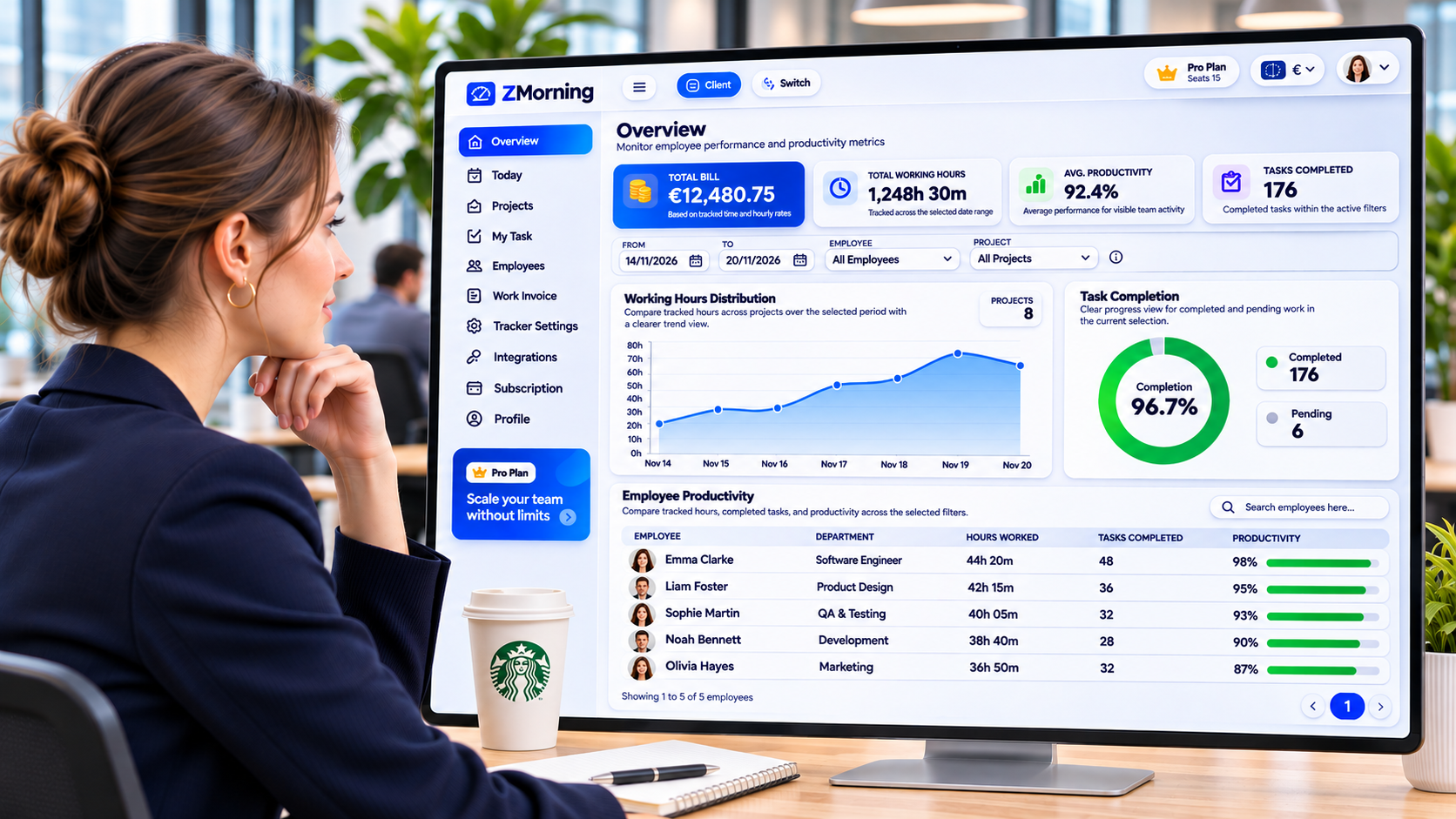
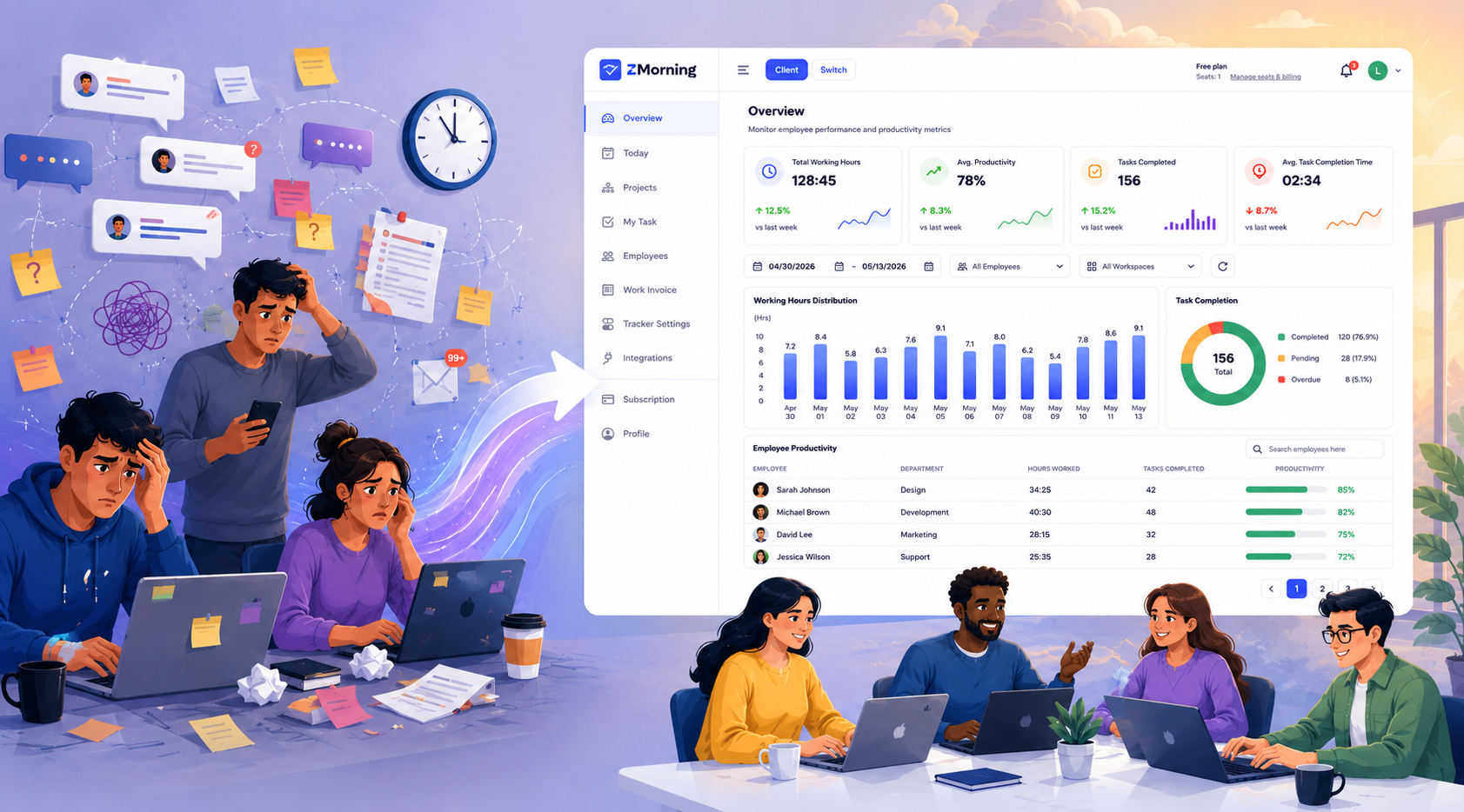
ZMorning brings working hours, employee productivity, task progress, and project information together in its Overview dashboard.
Instead of collecting figures from different spreadsheets, managers can review important team information from one place.
With ZMorning, managers can:
Review working hours: See the total time recorded during a selected date range.
Compare employees: Review individual working hours, completed tasks, and productivity figures.
Check task status: See completed and pending tasks within the selected employee and project scope.
Review project distribution: Understand how tracked hours are connected to different projects.
Filter reports: Narrow the report by date, employee, or project to examine specific areas.
The date range can be adjusted to review a particular week. Managers can also select an employee to focus on individual records or keep the full team selected for a broader view.
One important detail: ZMorning calculates productivity by comparing tracked time with configured weekly contract hours. It does not calculate this percentage from keyboard activity, mouse activity, or screenshots.
Also, task completion figures show the current status of tasks within the selected scope; changing the report dates does not turn them into a historical count of tasks completed during that week.
Understanding these details helps managers read the dashboard correctly and avoid drawing conclusions from the wrong figures.
Common Mistakes to Avoid When Reviewing Productivity
Even a well-organized report can lead to poor decisions if the information is misunderstood.
Here are a few mistakes worth avoiding:
Focusing only on total hours
Longer working hours do not necessarily mean better results. Consider completed work, task complexity, and project requirements as well.
Comparing employees without considering their roles
Different employees have different responsibilities. A designer, developer, and project manager may spend their time in very different ways.
Treating pending tasks as poor performance
Some tasks take longer because of their complexity or external dependencies. Check the reason before making assumptions.
Ignoring changes in workload
A sudden increase in working hours may indicate that someone needs additional support or that responsibilities should be redistributed.
Using productivity figures without context
A percentage can highlight a difference, but it cannot explain everything behind that difference. Use it alongside task and project information.
Final Thoughts
A weekly productivity report is most useful when it leads to clear, practical decisions.
By reviewing working hours, task progress, project distribution, and individual performance together, managers can better understand how their teams are working.
Keep the report focused, review it regularly, and use the findings to support better planning—not simply to measure people.