When employees work on computers, their keyboards and mice are often part of their daily work. Some businesses use activity tracking to understand how employees interact with their computers during working hours.
But what do these activity numbers actually tell managers?
A high number of keyboard presses or mouse clicks may look like a sign of hard work. However, activity counts do not always show how much useful work someone has completed.
Understanding what this data can and cannot tell you is important for making fair decisions and building trust with your team.
1. What Is Keyboard and Mouse Activity Tracking?
Keyboard and mouse activity tracking records certain actions employees make while working on a computer.
Depending on the tracking settings, software may count keyboard presses and mouse clicks during an active work session.
For example:
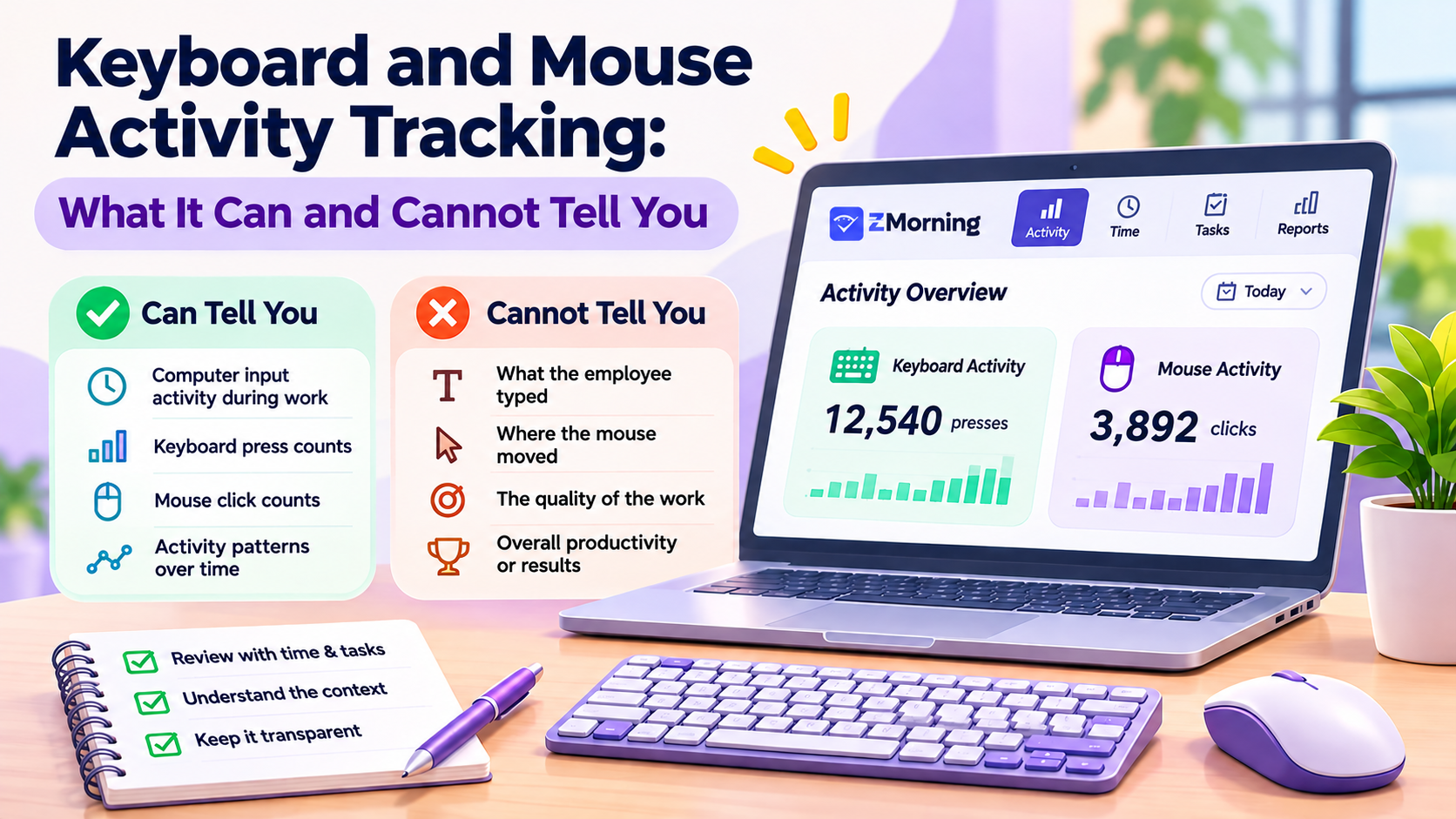
Keyboard activity counts how many keyboard press events occur.
Mouse activity counts how many mouse-button clicks occur.
Activity records can be organized by minute to show when computer input was recorded.
The purpose is to give managers another source of information when reviewing tracked work.
However, these numbers are only activity signals. They do not explain everything an employee does during the day.
2. What Keyboard Activity Can Tell You
Keyboard activity can help managers understand when an employee is actively using the keyboard during tracked work.
For example, a person writing reports, preparing documents, or entering information may create regular keyboard activity.
When reviewed over time, these counts can help show patterns in computer input.
However, keyboard activity does not tell managers:
What words the employee typed.
Which individual keys were pressed.
Whether the employee wrote something useful.
Whether the work was completed correctly.
How good the final result was.
Someone may type hundreds of words and still need to correct their work. Another person may write a short but important message that solves a major problem.
The number of keyboard presses alone cannot explain the value of that work.
3. What Mouse Activity Can Tell You
Mouse activity counts mouse-button clicks during a tracked session.
This can provide some information about computer interaction.
For example, a person working with spreadsheets, design software, or project management tools may use the mouse frequently.
But mouse activity also has limitations.
It does not show:
Where the employee moved the cursor.
Which buttons or areas they clicked.
Which application they used.
Whether each click helped complete a task.
How much progress they made.
A person may complete an important task with only a few clicks. Another person may click many times while trying to solve a problem.
That is why mouse activity should never be treated as a complete measure of performance.
4. Why High Activity Does Not Always Mean High Productivity
One common mistake is assuming that employees with higher keyboard and mouse counts are always more productive.
This is not necessarily true.
Different jobs require different types of computer activity.
For example:
A writer may spend much of the day typing.
A designer may spend more time reviewing layouts and making visual decisions.
A developer may read code, test changes, and think through problems before typing.
A manager may spend time in meetings or reviewing documents.
All these activities can be valuable, even when keyboard and mouse counts are different.
Productivity should be understood through the work completed, task requirements, quality, and working time—not just computer activity.
5. Understand Low Activity Before Making Assumptions
Low keyboard or mouse activity does not automatically mean an employee is avoiding work.
There are many reasons why computer input may be limited during a particular period.
For example:
The employee may be reading documents.
They may be attending a meeting.
They may be reviewing designs or reports.
They may be thinking through a difficult problem.
They may be discussing work with a colleague.
They may be taking a short break.
Some jobs also involve activities that do not require constant computer input.
Managers should understand the task and ask questions when something is unclear instead of making decisions based on a single activity number.
6. Review Activity Alongside Time and Task Information
Activity data becomes more useful when managers review it with other work information.
Instead of looking at keyboard or mouse counts alone, consider:
Tracked hours: How much time was recorded?
Task information: What work was the employee assigned?
Task progress: What has been completed?
Activity counts: Was keyboard or mouse input recorded during the session?
Screenshots: When enabled, what visual work context is available?
These details provide a broader picture of a work session.
For example, an employee may have low mouse activity while working on a document. If the task is progressing and the work is being completed properly, low activity may not be a concern.
The goal is to understand the work, not simply compare numbers.
7. Be Transparent About Employee Activity Tracking
Employee monitoring works better when everyone understands what is being collected and why.
Before enabling activity tracking, businesses should explain:
Which tracking settings are enabled.
What information the software records.
Who can review the records.
How the information will be used.
How employees can ask questions about tracking.
Clear communication helps prevent misunderstandings.
It also gives employees a better understanding of what their managers can actually see.
Businesses should review their applicable privacy requirements and workplace policies before collecting employee activity data. Requirements can vary depending on the location and employment relationship.
8. How ZMorning Records Keyboard and Mouse Activity
ZMorning provides keyboard and mouse activity tracking as part of its desktop time-tracking workflow.
When the employer enables these settings, ZMorning counts keyboard press events and mouse-button clicks during an active tracking session.
The important distinction is that ZMorning records counts, not the actual input content.
For example:
Keyboard tracking records the number of keyboard press events, not the words typed.
Mouse tracking records the number of mouse-button events, not cursor movement or pointer coordinates.
Activity counts are organized by minute and grouped into ten-minute tracking slots.
Employers can manage keyboard and mouse tracking settings for individual employees through Tracker Settings. These settings are loaded when a new desktop tracking session starts.
Managers can review available activity information through the Today page, alongside the related time records and task context.
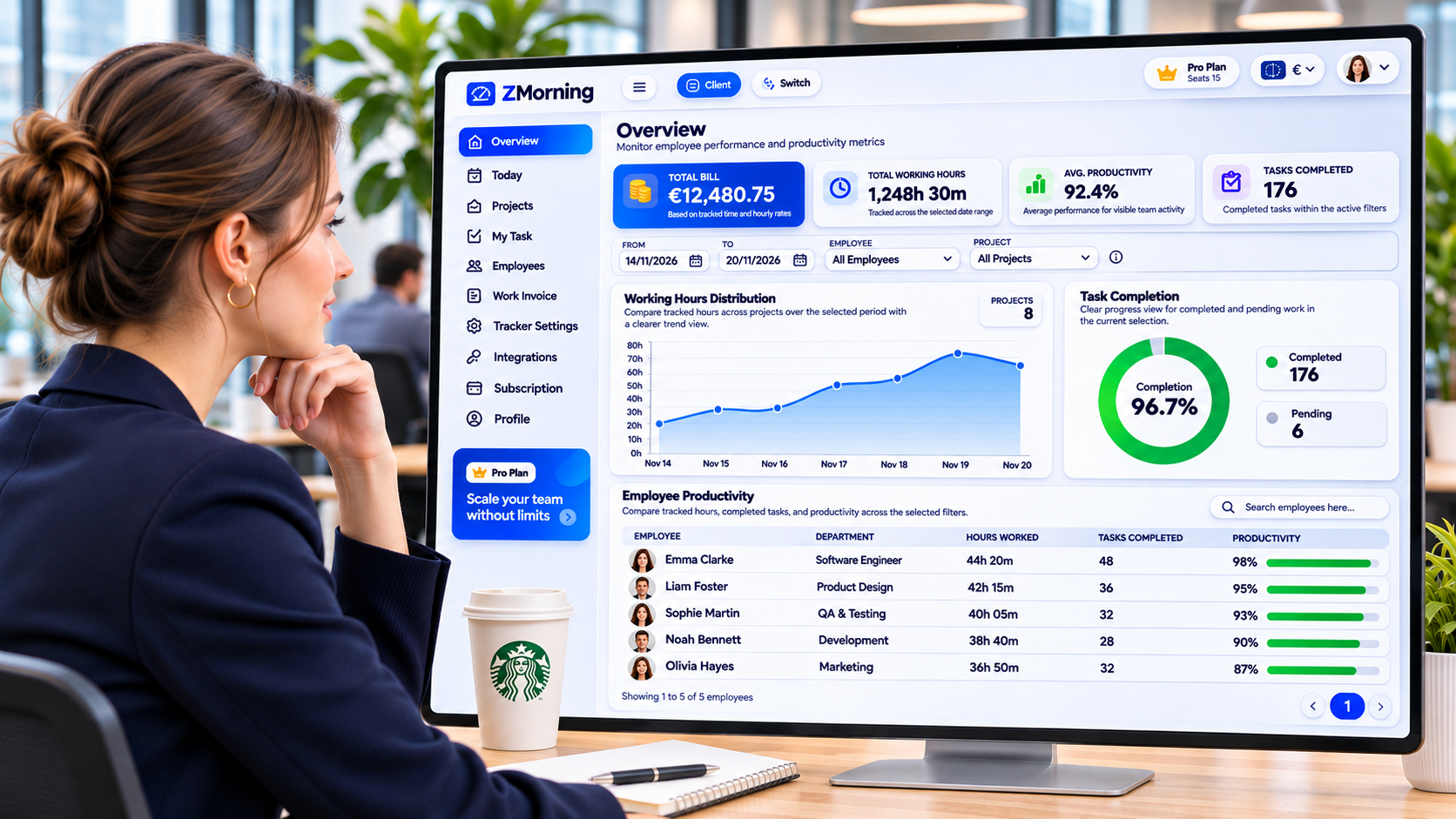
ZMorning does not use keyboard or mouse counts to calculate its Overview Productivity percentage. That percentage compares tracked time with the employee's weekly contract capacity over the selected period.
This is an important distinction: activity counts provide additional work context, while tracked time and contract hours are used for the productivity calculation.
9. Use Activity Data to Support Better Conversations
Activity tracking should not replace communication between managers and employees.
If something looks unusual, managers can start with a simple conversation.
For example:
Is anything preventing you from completing this task?
Do you need help with something?
Is the task taking longer than expected?
Is there any information missing?
These questions can help managers understand the situation before making decisions.
A supportive conversation is often more useful than comparing activity numbers without understanding the work.
Final Thoughts
Keyboard and mouse activity tracking can provide useful information about computer input during working hours. However, it cannot tell the complete story of an employee's performance.
High activity does not always mean high productivity, and low activity does not automatically mean someone is not working.
The best approach is to review activity alongside tracked hours, tasks, completed work, and clear communication.
When businesses understand the limits of activity data, they can use it more responsibly and make better decisions without judging employees by numbers alone.